Troubleshooting
Most problems in Local Desktop come from a handful of causes. Find what you see below. If it's not here, see Report a bug at the end.
"Device Unsupported!"
When it starts, Local Desktop first checks that it can run Linux with PRoot on your device. If that test fails, you see Device Unsupported! instead of the installer.
This is rare on a normal phone. It usually means something special about the device:
- The app is on an SD card, or on another unusual file system. Move Local Desktop back to the internal storage in App info > Storage.
- The phone is rooted, or runs a custom ROM with extra security changes (some Magisk modules, SELinux tweaks or kernels block what PRoot needs). Try turning those off.
- The phone isn't arm64. Local Desktop only runs on 64-bit ARM devices. Very old phones, a few cheap tablets and most Android emulators on a PC (x86_64) are not supported.
If Termux with proot-distro works on the same phone, please open an issue with your phone model and Android version. That means Local Desktop should work too, and we want to fix it.
The installer is stuck or fails
The first run downloads about 150 MB and then installs the desktop with pacman, so it needs a working internet connection the whole time.
- The bar doesn't move for a long time. Tap the bar to open the log. If the last lines are still changing, it's just slow. Downloading and installing several hundred packages can take 10 minutes or more on a slow connection. Keep the app open in front, with the screen on.
- The page is blank, or the docs don't load. The installer page itself needs the internet to show up. Check your connection (and turn off a VPN or private DNS that blocks sites), then close and open the app.
- "Retrying installation... (attempt 2/10)". Something failed (usually a download). Local Desktop tries again by itself, up to 10 times.
- "Failed to install desktop dependencies after 10 attempts." Check your connection, then close the app completely (swipe it away from the recent apps) and open it again. Packages that were already downloaded are kept, so the next try is faster.
- The download is broken. If extracting Arch Linux fails, Local Desktop deletes the file and downloads it again by itself.
"Installation finished, please restart the app!"
That's not an error, it's good news 🎉. The app doesn't restart by itself, so close it (swipe it away from the recent apps) and open it again. Your desktop starts in a few seconds.
Black screen
If you see a black screen after the installer, or after you changed a setting:
- Wait 30 seconds. The very first start of the desktop takes longer than the next ones.
- Open Local Desktop settings from App info, tap Restore defaults, then Restart Local Desktop. This undoes any change to the commands or the user.
- If you use another user, make sure it exists. Set User back to
rootto check. - Still black? The reason is in the logs. See Reading the logs.
Local Desktop closes by itself
On Android 12 and newer, this is almost always the phantom process killer, which stops apps that start many processes. A Linux desktop does exactly that. Turn it off as described in Read this if you use Android 12 or newer.
Other things that help:
-
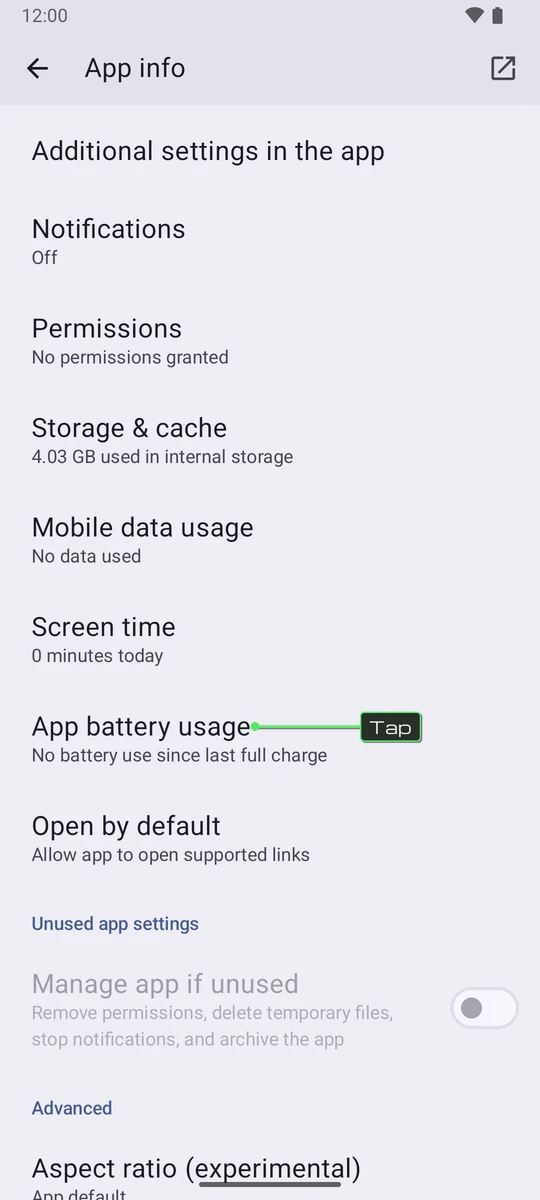
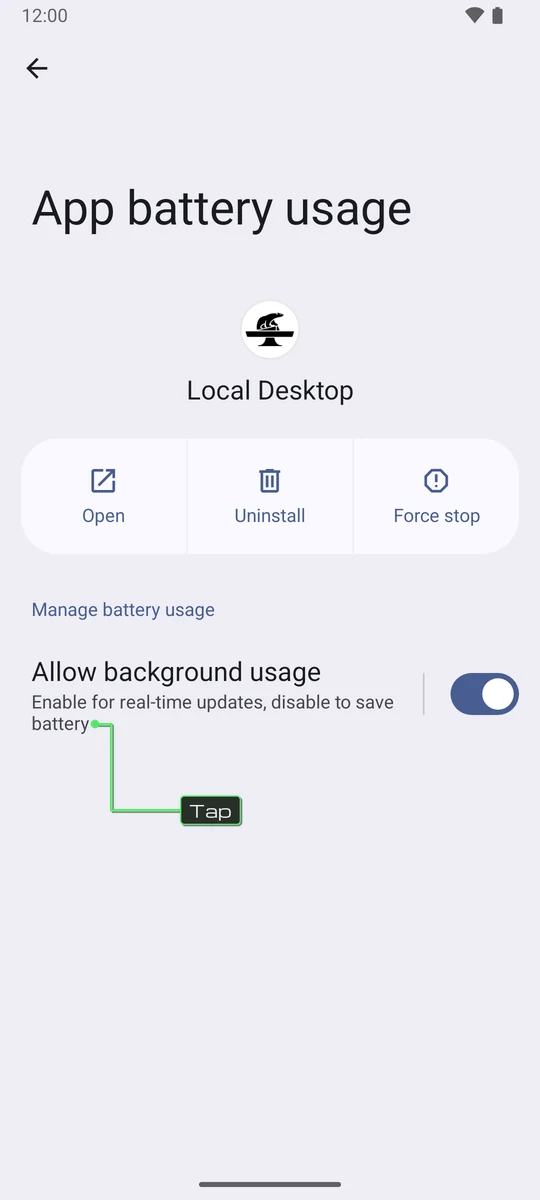
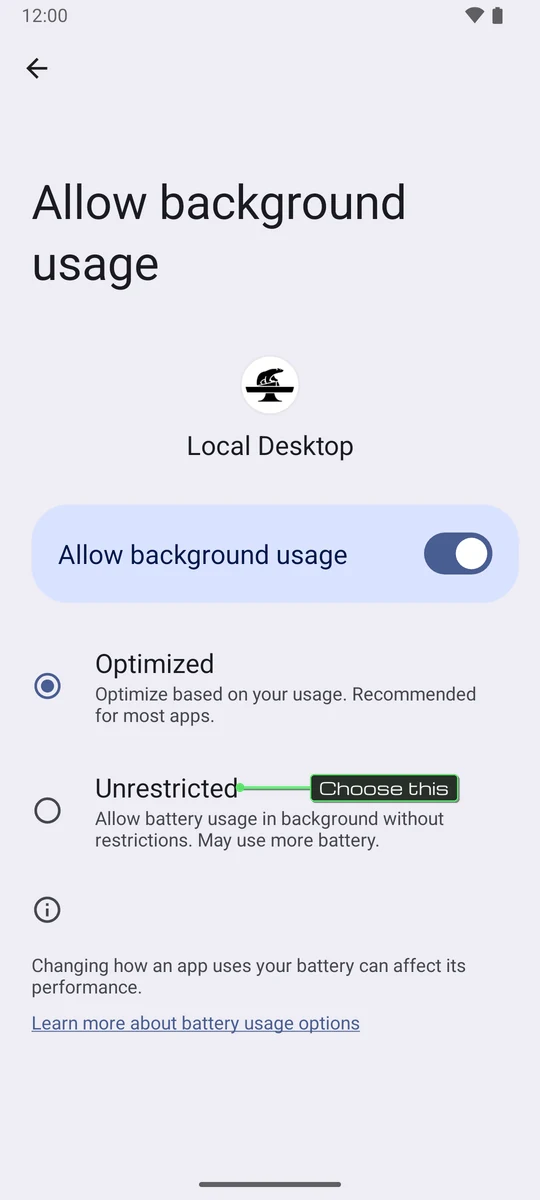
Turn off battery optimization for Local Desktop: App info > App battery usage > Allow background usage > Unrestricted. The names are a bit different on each brand, and some brands, like Xiaomi, Oppo, OnePlus and Huawei, are very aggressive at closing apps in the background.
-
Close heavy apps you don't use. Firefox with many tabs uses a lot of memory, and Android closes apps when memory runs out.
Installing an app fails
Most pacman errors come from an out-of-date package list or a full disk. Always install with pacman -Syu <app>, not -S. Installing apps explains the common error messages.
If the error says could not satisfy dependencies and mentions pipewire or wireplumber, update Local Desktop and open it once. Older versions held PipeWire back, which breaks pacman -Syu once Arch moves on.
"whoami: cannot find name for user ID"
Your normal user can't read /etc/passwd, so programs can't find its name, and pacman, makepkg and yay fail too. Older versions of Local Desktop left those files unreadable after some updates. Update Local Desktop and open it once, or fix it yourself as root:
chmod 644 /etc/passwd /etc/group
No sound
- Sound needs Android 11 or newer.
- Sound pauses when you switch to another app (unless you use an external display). Come back to Local Desktop and it plays again.
- Check Android's media volume, and the volume icon on the Xfce panel.
- If you changed the Launch command, make sure it still exports
PIPEWIRE_RUNTIME_DIRandPULSE_SERVER. See Changing the desktop environment.
The keyboard doesn't come up
- In apps that run through Xwayland (mostly older apps), the Android keyboard doesn't open by itself. Open Applications > Accessories > On-screen keyboard instead.
Alt+Tabor theMetakey on a physical keyboard do something in Android instead of the desktop? See Using a physical keyboard.
Text is too small or too big
Local Desktop sets the scale from your screen's density, and resets it when the screen changes size. To make text a bit bigger without changing the whole scale, open Applications > Settings > Appearance > Fonts and pick a bigger size for the Default Font.
Running out of storage
Linux, its apps and their caches all count as Local Desktop's app data in Android. To free some space:
pacman -Scc
This clears pacman's cache of downloaded packages, which can be several GB after a few updates. Also look for big folders with du -sh ~/* ~/.cache/*.
Never use Clear storage in Local Desktop's App info, and never uninstall the app, unless you want to start from scratch. Both delete Arch Linux and everything in it, including your Linux home folder. Files in your Android storage are safe.
Report a bug
If nothing here helped, please open an issue on GitHub and include:
- Your phone model and Android version.
- The Local Desktop version (in App info, at the bottom).
- What you did, what you expected, and what happened instead. A screenshot or a screen recording helps a lot.
- The logs, if you can. Reading the logs explains how to get them, even without a computer.