Using a physical keyboard
A USB or Bluetooth keyboard works in Local Desktop without any setup. Letters, numbers, arrows, Ctrl+C, Ctrl+V and most other shortcuts go straight to your Linux apps.
A few shortcuts never reach an app, though, because Android keeps them for itself. The most common ones are:
Alt+Tab, which switches between Android apps instead of Linux windows.- The
Metakey (the Windows or Search key), which opens Android's app drawer or search instead of the Xfce menu. - Some brands add more, like
Ctrl+SpaceorMeta+D.
To fix this, Local Desktop comes with a small keyboard service. When it's on, Local Desktop gets the key presses before Android does, and passes them to the desktop.
The easy way
The first time you use Local Desktop with a physical keyboard connected, it asks:
Use Alt+Tab on the desktop?
Android keeps Alt+Tab and the Meta key for itself. The Local Desktop keyboard service passes them to the desktop.
Tap Turn on, and Android's Accessibility settings open. Then follow the steps below from step 2.
If you tap Not now, it asks again the next time you open Local Desktop. After you tap Turn on once, it won't ask again, even if you don't finish the setup.
Turn on the keyboard service
-
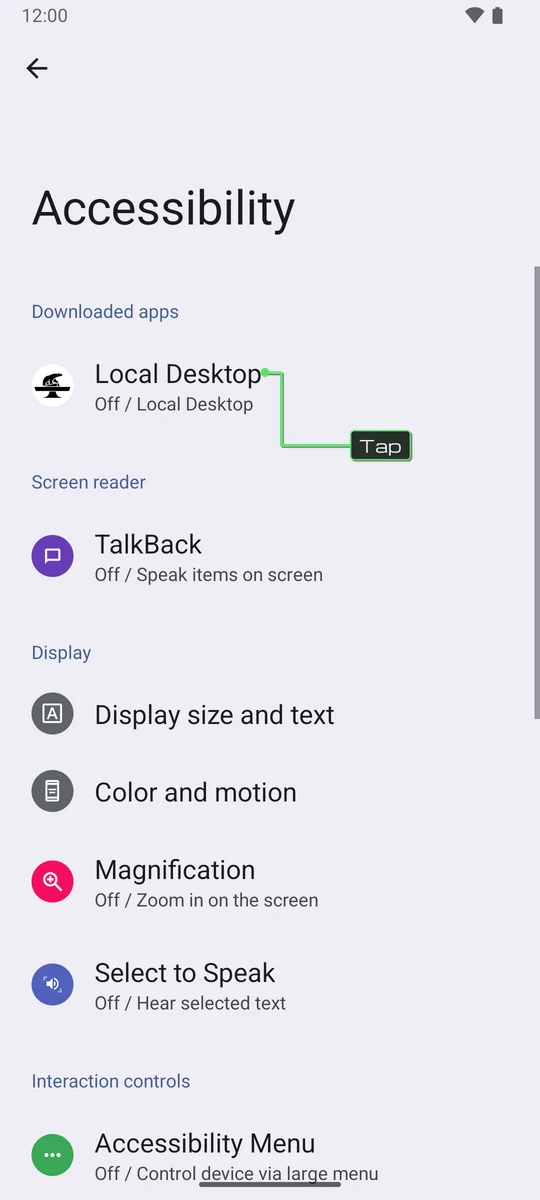
Open Android Settings > Accessibility, then tap Downloaded apps (on some phones, Installed apps or Installed services).
-
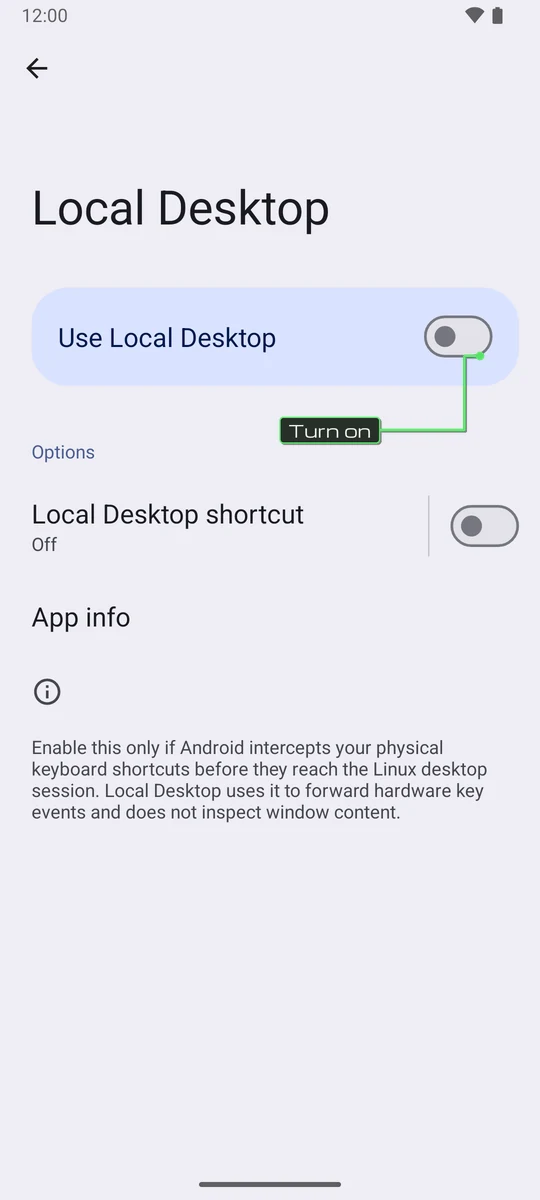
Tap Local Desktop and turn on Use Local Desktop.
-
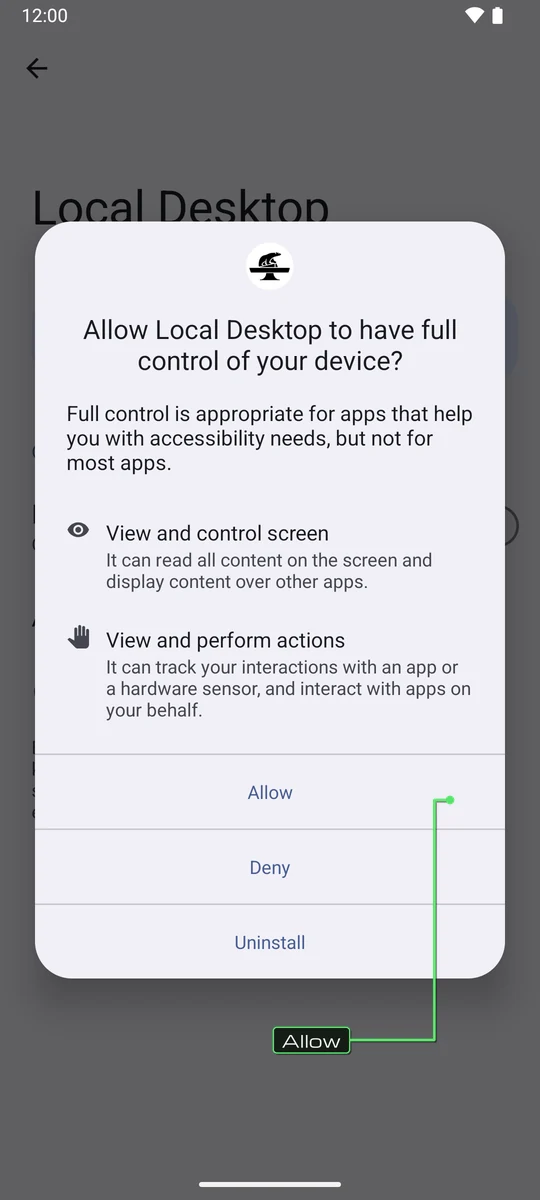
Android shows a warning that the app will have full control of your device. Read it, then tap Allow.
-
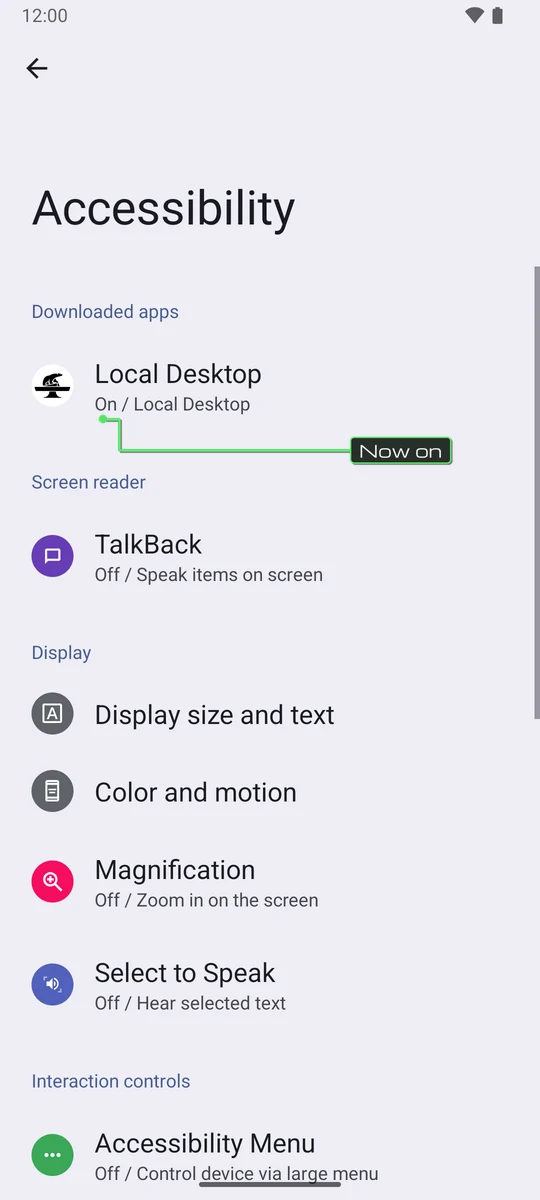
Back in the Accessibility list, Local Desktop now shows On.
Now switch back to Local Desktop and try Alt+Tab.
Why the scary warning?
Android shows the same "full control of your device" warning for every accessibility service, whatever it does. It's the only way Android lets an app see key presses before the system does.
Here's what Local Desktop's service actually does:
- It only listens to key presses from a physical keyboard. It doesn't read the screen, window content, notifications or anything you type on the on-screen keyboard.
- It only passes keys to the desktop while Local Desktop is open in front. When you switch to another app, your shortcuts work in Android as usual.
- It doesn't save or send any of your key presses anywhere.
The volume and power buttons are always left to Android. The whole service is about 60 lines of code, and you can read it on GitHub.
Do I need it?
Only if a shortcut you use doesn't work. If you never use Alt+Tab or the Meta key, you can leave it off. Everything else on your keyboard works without it.
Turn it off
Open Settings > Accessibility > Downloaded apps > Local Desktop and turn off Use Local Desktop. Local Desktop won't ask you again.