Creating a normal user
To keep the first run simple, Local Desktop doesn't ask you to create an account. That's why the desktop runs as root by default.
That's fine for a lot of things, but some apps are recommended or even required to run as a normal user:
- AUR helpers like
yayandparurefuse to run as root, so you need a normal user to install anything from the AUR. - Many programs assume they don't run as root, and some warn you about it every time they start.
makepkg, which builds Arch packages from source, also refuses to run as root.
It takes about five minutes. Open the terminal on the desktop and follow the steps below.
Replace teddy with your own username in every command. Use lowercase letters only, with no spaces.
1. Create your user
useradd -m teddy
The -m flag also creates the user's home folder, /home/teddy.
2. Set a password
passwd teddy
Type the password twice. Nothing appears on the screen while you type, which is normal. You will need this password for sudo.
3. Set up sudo
Once you log in as a normal user, you need sudo to run commands as root, for example to install packages with pacman. If you skip this step, you won't be able to install anything.
Install sudo:
pacman -Syu sudo
Allow your user to use it, by editing the sudoers file:
EDITOR=nano visudo
Add this line at the end of the file:
teddy ALL=(ALL) ALL
Save with Ctrl+O, Enter, and exit with Ctrl+X. visudo checks the file before saving it, so a typo can't lock you out.
Now test it, by switching to your new user in the terminal:
su teddy
sudo ls /root
If it asks for your password and then lists the folder, it works. If it says "teddy is not in the sudoers file", go back to step 3. Type exit to go back to root.
4. Tell Local Desktop
Local Desktop doesn't know about your new user yet, so it still logs in as root. To change that:
- Open Android's App info for Local Desktop, then Additional settings in the app. See Changing settings for how to get there.
- Set User to
teddy. - Tap Restart Local Desktop.
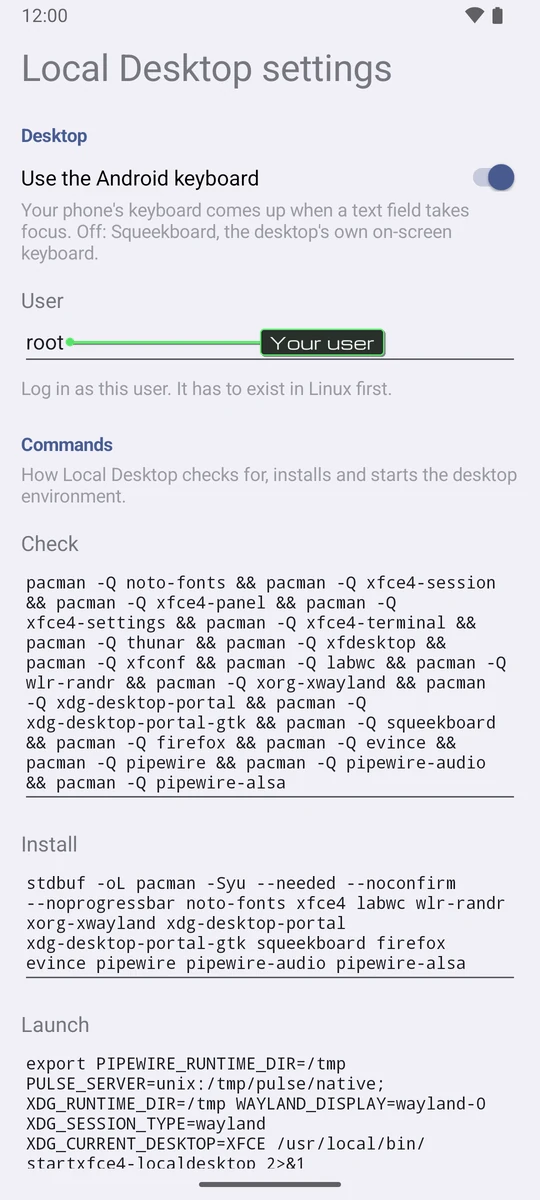
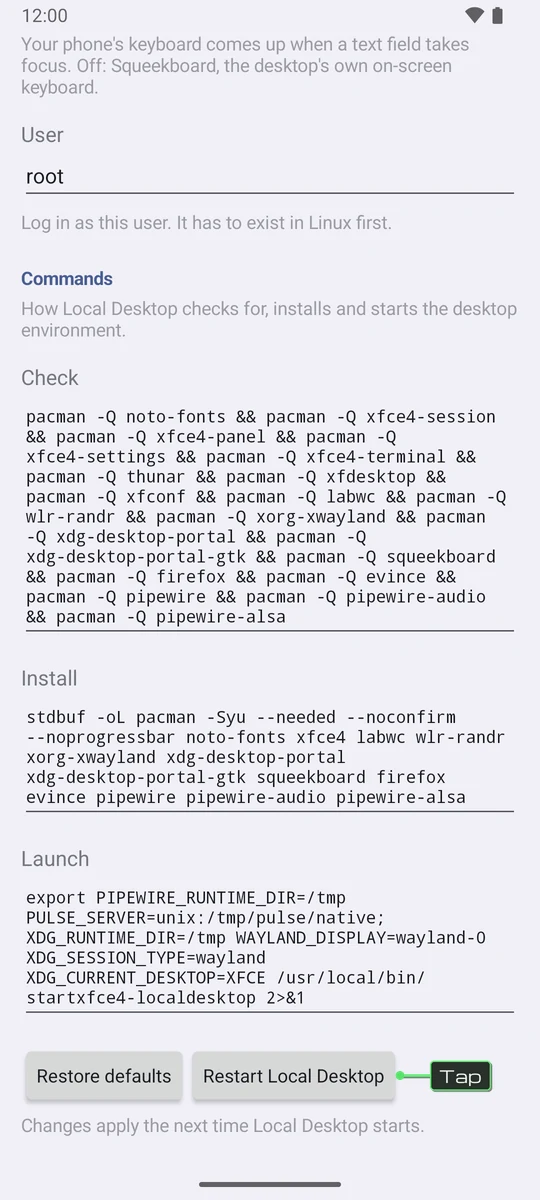
The desktop now starts as your user, with the same Xfce setup as before: Local Desktop sets up the panel, the keyboard and the screen scale in your new home folder too.
What changes, and what doesn't
- Only the desktop (the Launch command) runs as your user. Local Desktop still checks and installs the desktop packages as root, so updates keep working.
- Your files from root's home (
/root) don't move. Copy what you need withsudo cp -r /root/Documents ~/, thensudo chown -R teddy: ~/Documents. - Your Android storage is at
/android. The~/Androidshortcut is only made for root, but you can add your own withln -s /android ~/Android. See Sharing files with Android.
Something went wrong?
If the desktop doesn't start after the change, usually the user doesn't exist (check the spelling). Open the settings again, set User back to root, and tap Restart Local Desktop. Then check the user with id teddy in the terminal.