Sharing files with Android
Linux in Local Desktop lives in the app's private storage, separate from your Android files. With one permission, Local Desktop can also show your Android storage (the same files you see in the Files app: Download, DCIM, Documents...) inside Linux. Then you can open a photo from your camera in GIMP, or save a file from Firefox and find it in Android.
Give Local Desktop access to your files
Local Desktop doesn't ask for this permission by itself, because you may not want it. To turn it on:
- Open Android's Settings > Apps > Special app access > All files access. You can also search for "All files access" in Settings.
- Find Local Desktop in the list and tap it.
- Turn on Allow access to manage all files.
- Close Local Desktop (swipe it away from the recent apps) and open it again. The permission is read when the app starts, so this step is needed.
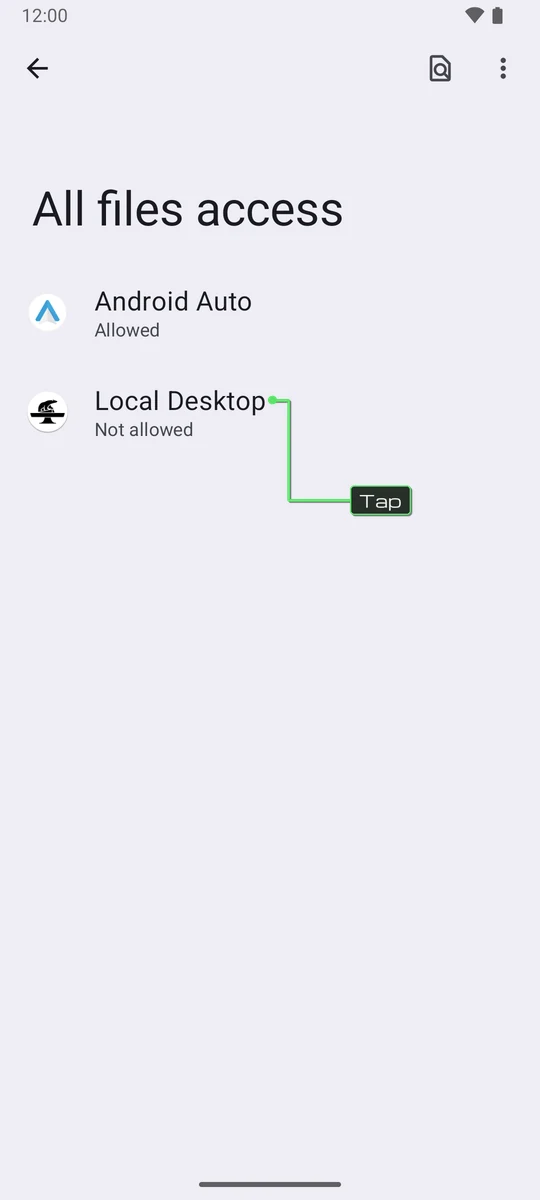
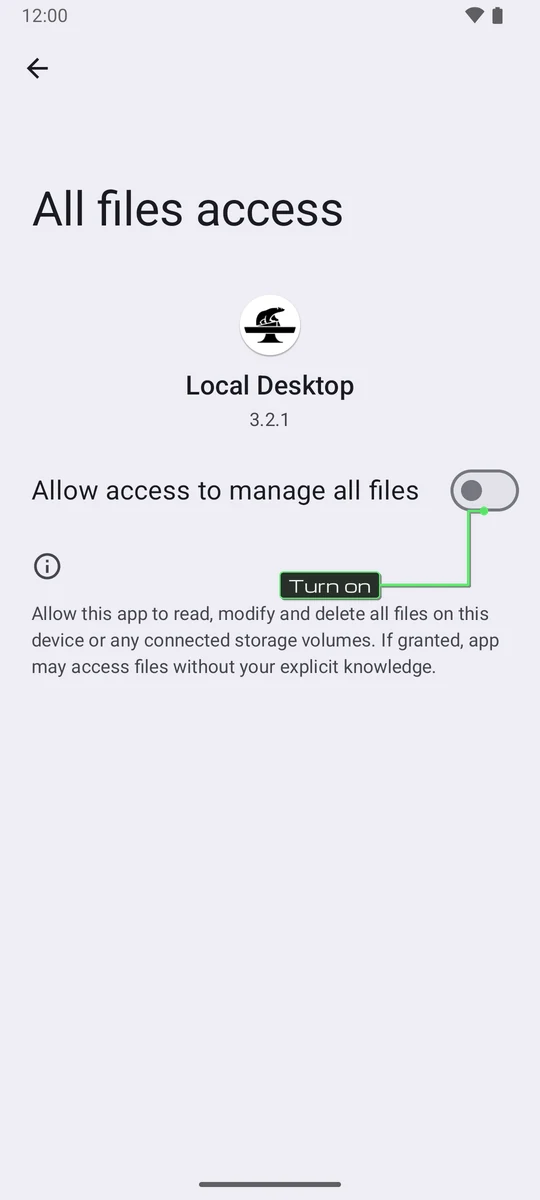
The names of these menus are a bit different on each brand. If you can't find them, search for "All files access" or "Manage all files" in the Settings app.
This needs Android 11 or newer. On older Android versions, the shared folder is not available.
Find your files in Linux
After the restart, your Android storage is at:
/android, for every user~/Android(which is/root/Android), when you use the defaultrootuser
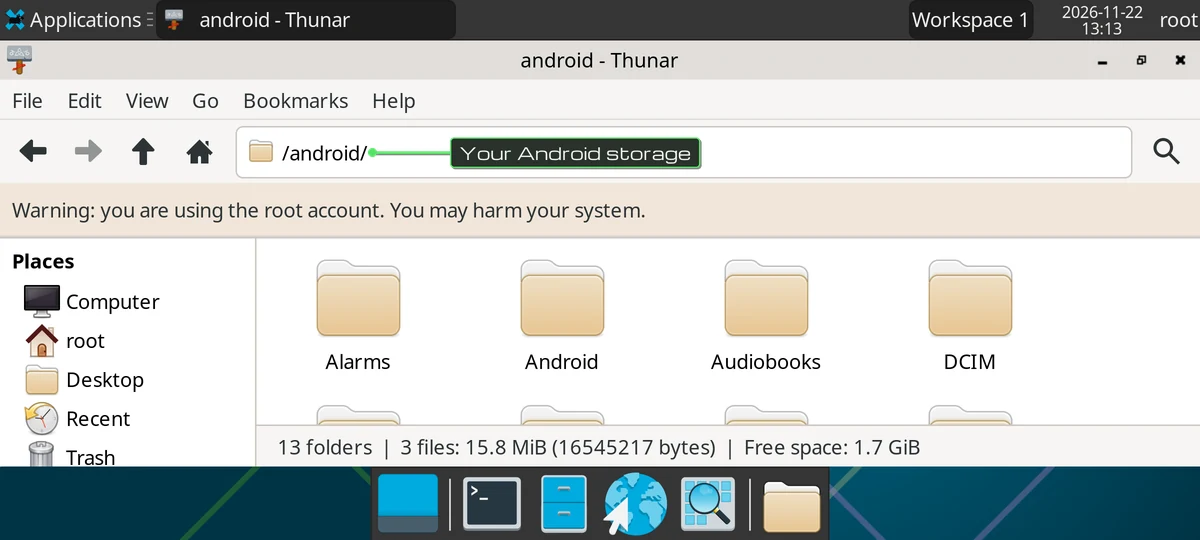
In Thunar, type /android in the address bar (Ctrl+L), then add it to the side panel with Bookmarks > Add Bookmark, so it's one tap away next time.
If you created a normal user, use /android. You can also make a link to it in your home folder:
ln -s /android ~/Android
Good to know
- Changes go both ways and happen right away. A file you save to
/android/Downloadin Linux shows up in Android's Downloads, and the other way around. - Android may take a moment to show new photos or videos in the Gallery, since the Gallery only looks for new files from time to time.
- Android's storage doesn't keep Linux permissions or owners, so a script there can't be made executable. Run it with
sh script.sh, or copy it to your Linux home folder. - Don't put Linux programs or a whole project with thousands of small files there. Android's shared storage is much slower than the app's own storage. Copy them into your Linux home folder instead.
Turn it off
Go back to All files access, turn off Allow access to manage all files for Local Desktop, and restart the app. /android and ~/Android disappear from Linux, and your Android files stay where they are.