Media players
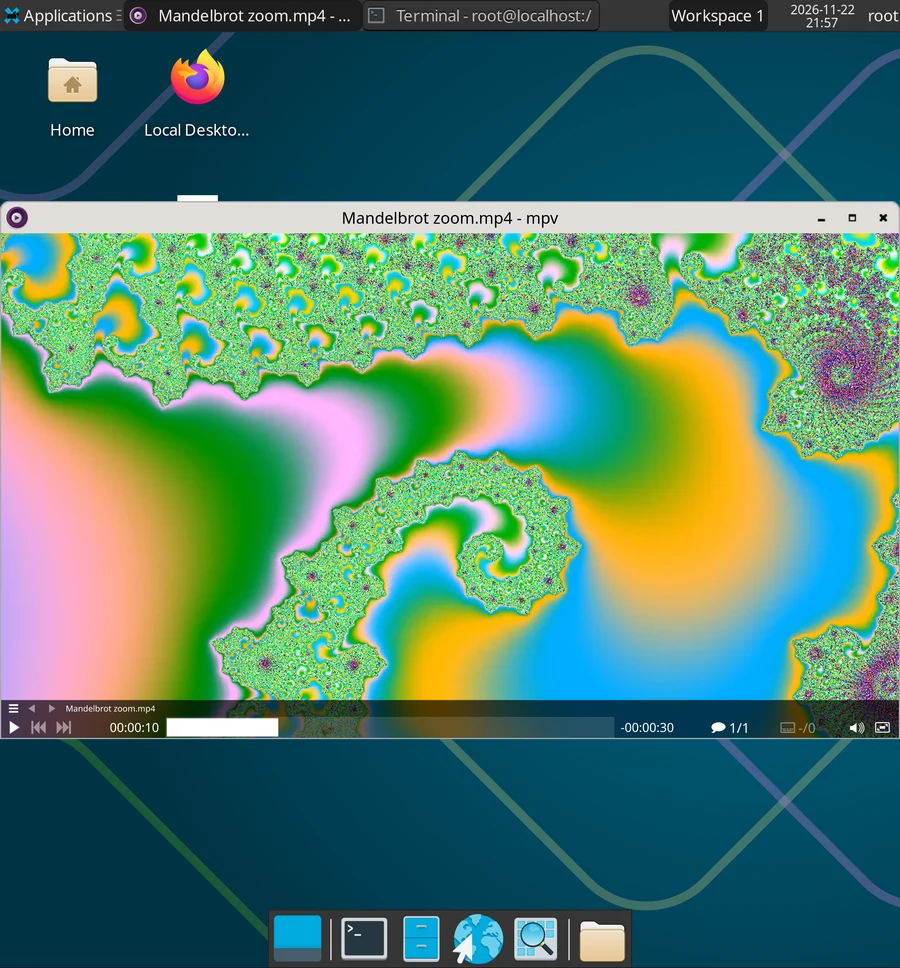
To watch a video or play music inside Local Desktop, use mpv. It's small, starts fast, plays almost every format, and works with Local Desktop's sound and GPU support out of the box.
Install
pacman -Syu mpv
Play a file
From the file manager: right click (touch and hold, then lift) a video, then Open With > mpv Media Player.
From the terminal:
mpv ~/Videos/holiday.mp4
mpv has no menu bar. Move the mouse, or tap the video, to show the controls at the bottom. With a keyboard:
| Key | What it does |
|---|---|
Space | Pause and play |
← → | Back and forward 5 seconds |
f | Full screen |
9 0 | Volume down and up |
q | Quit |
To play a video from your phone's camera, give Local Desktop access to your Android storage first. Your videos are in /android/DCIM/Camera.
How well it plays
On a OnePlus Open (Snapdragon 8 Gen 2), mpv played a 720p, 30 fps H.264 video smoothly: it dropped a few frames in the first second, then none. mpv draws the video with the GPU when it can, so on phones without GPU acceleration, expect it to use more CPU, and high-resolution videos to stutter.
Sound goes through the same path as every Linux app in Local Desktop, see Using the desktop. It pauses when you switch to another Android app, unless the desktop is on an external display.
What about VLC?
VLC is in pacman too (pacman -Syu vlc), but it refuses to start as root, which is Local Desktop's default user:
VLC is not supposed to be run as root. Sorry.
To use VLC, create a normal user and log in to the desktop as that user. We haven't tested VLC that way yet. If you do, let us know how it goes in GitHub Discussions.