Changing settings
Local Desktop's settings live in Android, not inside Linux. That's on purpose: you can open them even when the desktop doesn't start, so a wrong setting is always easy to undo.
Open the settings
- Touch and hold the Local Desktop icon, then tap App info. You can also go to Android's Settings > Apps > Local Desktop.
- Tap Additional settings in the app. On some phones, this is a gear icon at the top of the App info page.
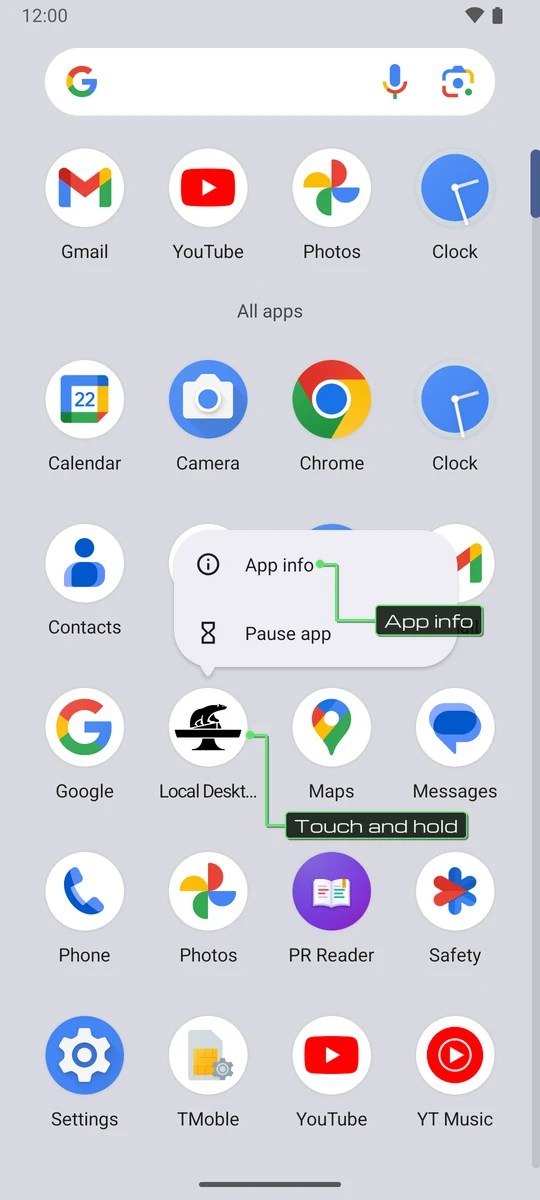
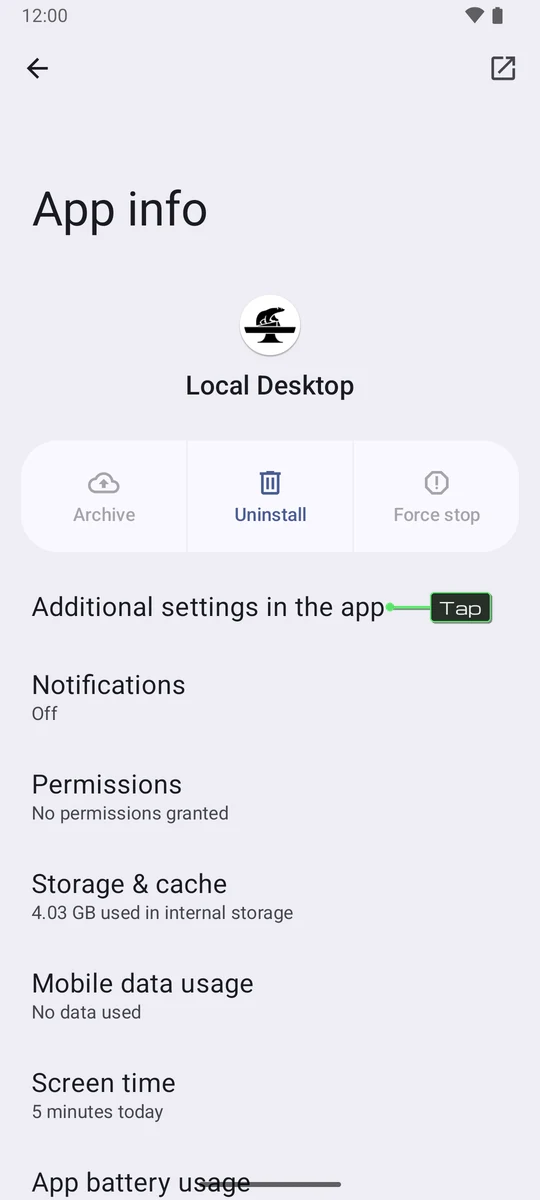
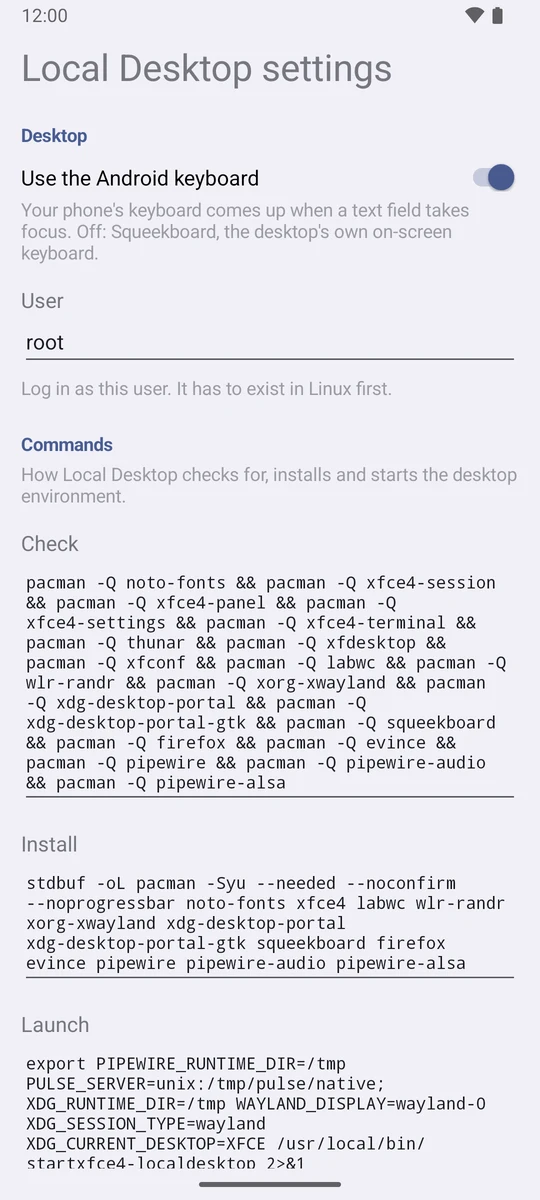
There is no Save button. Your changes are saved when you leave the page, and they apply the next time Local Desktop starts. To apply them right away, tap Restart Local Desktop at the bottom.
Desktop
Use the Android keyboard
On by default. Your phone's keyboard comes up when a text field takes focus, and the desktop fits above it. Turn it off to use Squeekboard, the desktop's own on-screen keyboard, instead. See Keyboard for the difference.
With an external display connected, the Android keyboard is always used, whatever this setting says.
User
root by default. This is the Linux user that the desktop runs as. The user has to exist in Linux first, so follow Creating a normal user before you change it.
Commands
These three commands are how Local Desktop checks for, installs and starts the desktop environment. Every time the app starts:
- It runs Check. If Check succeeds, it goes to step 3.
- If Check fails, it shows the installer and runs Install, then Check again. It tries up to 10 times.
- It runs Launch to start the desktop.
| Command | Default |
|---|---|
| Check | pacman -Q for each of the 19 packages the desktop needs, such as xfce4-session, labwc, firefox and pipewire |
| Install | pacman -Syu with those same packages |
| Launch | Starts the Xfce session with /usr/local/bin/startxfce4-localdesktop, with sound and GPU acceleration set up |
The fields are empty, with the hint Default, until the app has started once. An empty field means "use the default", and only the commands you actually change are stored. So when an update changes the defaults (to add a package, for example), you get the new ones automatically.
Check and Install always run as root. Launch runs as the User you chose.
You can replace these commands to use another desktop environment, such as KDE Plasma. See Changing the desktop environment.
Because Check runs every time, removing one of the checked packages (for example pacman -R firefox) makes Local Desktop install it again the next time it starts. If you really want to remove one, also remove it from Check.
Restore defaults
Restore defaults puts every field back to its default value. It doesn't restart the app, so tap Restart Local Desktop afterwards, or just open Local Desktop again.
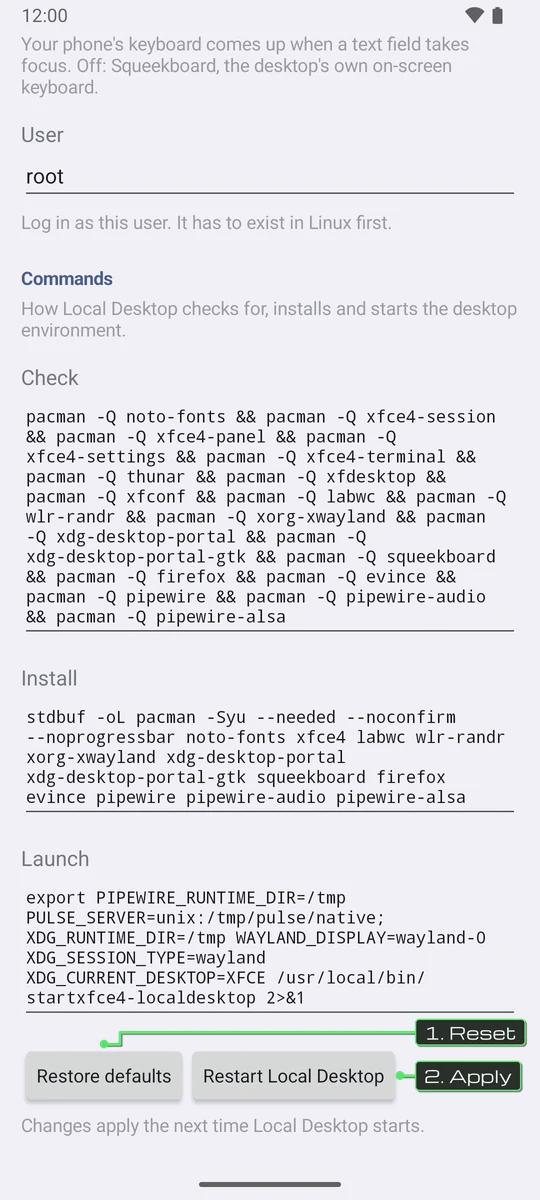
Restart Local Desktop
This saves your changes, stops Local Desktop and every Linux process it started, then opens it again. If Android doesn't let it open again by itself, you will see "Open Local Desktop to apply the changes." Just open the app yourself.
Black screen after a change?
If the desktop doesn't come up after you changed a setting, that's fine. Nothing is broken. The settings still open, because they run separately from the desktop. Open them as described above, then either change the setting back or tap Restore defaults, and then Restart Local Desktop.
If that doesn't help, see Troubleshooting.