Changing the desktop environment
This is an advanced topic. Proceed at your own risk.
Local Desktop comes with Xfce, but it's not tied to it. Any desktop environment that runs on Wayland (or on X11 through Xwayland) can work, as long as it's in the Arch Linux ARM repositories. You switch by changing three commands in Local Desktop settings.
The settings open from Android even when the desktop doesn't start. If your new commands don't work, change them back, or tap Restore defaults, and you get Xfce back.
The 3 commands
Every time Local Desktop starts, it runs Check. If Check succeeds, it runs Launch. If Check fails, it shows the installer and runs Install, then Check again (up to 10 times).
There are 2 modes in Local Desktop:
- Installer mode, the page with these docs on top of a progress bar. You see it while Install runs.
- Desktop mode, the Wayland desktop. You see it once Launch runs.
Check
A command that succeeds when everything the desktop needs is installed. The default checks for 19 packages, one by one:
pacman -Q noto-fonts && pacman -Q xfce4-session && pacman -Q xfce4-panel && ... && pacman -Q pipewire-alsa
Use pacman -Q package to check for a package, and pacman -Qg group to check for a group. Join several checks with &&.
Check runs every time the app starts, so keep it fast. pacman -Q only reads the local database, so it takes a fraction of a second.
Install
Runs as root when Check fails. This is the command that you watch in the installer's log panel. The default is:
stdbuf -oL pacman -Syu --needed --noconfirm --noprogressbar noto-fonts xfce4 labwc wlr-randr xorg-xwayland xdg-desktop-portal xdg-desktop-portal-gtk squeekboard firefox evince pipewire pipewire-audio pipewire-alsa
Some important notes:
- Always start with
stdbuf -oL, or the log panel only updates once in a while. Why? - Always include
--noconfirm. Otherwise pacman waits for a "yes" that never comes, and the installer gets stuck. --noprogressbarkeeps the log readable.
Keep everything up to --noprogressbar, and change only the list of packages at the end. For example: stdbuf -oL pacman -Syu --needed --noconfirm --noprogressbar plasma konsole.
Launch
Runs as the user you chose, once Check succeeds. It starts the desktop environment, and it's the most complicated of the three, since it needs a good understanding of how a Linux desktop starts. The default is:
export PIPEWIRE_RUNTIME_DIR=/tmp PULSE_SERVER=unix:/tmp/pulse/native; XDG_RUNTIME_DIR=/tmp WAYLAND_DISPLAY=wayland-0 XDG_SESSION_TYPE=wayland XDG_CURRENT_DESKTOP=XFCE /usr/local/bin/startxfce4-localdesktop 2>&1
Local Desktop's own Wayland compositor listens on /tmp/wayland-0. Your desktop environment connects to it as a nested session, like it would inside a window on a PC.
/usr/local/bin/startxfce4-localdesktop is a small script that Local Desktop writes on each start. Before it runs startxfce4 --wayland, it:
- Exports
PIPEWIRE_RUNTIME_DIRandPULSE_SERVER, so apps find the sound server. - Exports
ELECTRON_DISABLE_SANDBOX=1, so VS Code and other Electron apps start. Why? - Loads the GPU drivers with
/opt/localdesktop-mesa/env.sh, on supported phones.
Your own Launch command should do the same, or sound, Electron apps and the GPU won't work. A few more notes:
- Put
2>&1at the end, so that errors show up in the logcat. When the screen stays black, the logcat tells you why. - The Android keyboard and automatic screen scaling are set up by the Xfce session's autostart, so with another desktop you may need to set the scale yourself in its display settings.
Start with the exports, then load the GPU drivers if they are there, then start a Wayland session such as startplasma-wayland:
export PIPEWIRE_RUNTIME_DIR=/tmp PULSE_SERVER=unix:/tmp/pulse/native ELECTRON_DISABLE_SANDBOX=1; [ -r /opt/localdesktop-mesa/env.sh ] && . /opt/localdesktop-mesa/env.sh; XDG_RUNTIME_DIR=/tmp WAYLAND_DISPLAY=wayland-0 XDG_SESSION_TYPE=wayland <your session> 2>&1
For a legacy X11 session through Xwayland, start Xwayland first, wait for its socket, and point the desktop at DISPLAY=:1:
Xwayland -hidpi :1 2>&1 & while [ ! -e /tmp/.X11-unix/X1 ]; do sleep 0.1; done; XDG_SESSION_TYPE=x11 DISPLAY=:1 dbus-launch startxfce4 2>&1
Config templates
KDE Plasma
Check:
pacman -Qg plasma
Install:
stdbuf -oL pacman -Syu --needed --noconfirm --noprogressbar plasma konsole dolphin
Launch, a Wayland session:
export PIPEWIRE_RUNTIME_DIR=/tmp PULSE_SERVER=unix:/tmp/pulse/native ELECTRON_DISABLE_SANDBOX=1; [ -r /opt/localdesktop-mesa/env.sh ] && . /opt/localdesktop-mesa/env.sh; XDG_RUNTIME_DIR=/tmp WAYLAND_DISPLAY=wayland-0 /usr/lib/plasma-dbus-run-session-if-needed startplasma-wayland 2>&1
Or an X11 session through Xwayland:
XDG_RUNTIME_DIR=/tmp Xwayland -hidpi :1 2>&1 & while [ ! -e /tmp/.X11-unix/X1 ]; do sleep 0.1; done; XDG_SESSION_TYPE=x11 DISPLAY=:1 dbus-launch startplasma-x11 2>&1
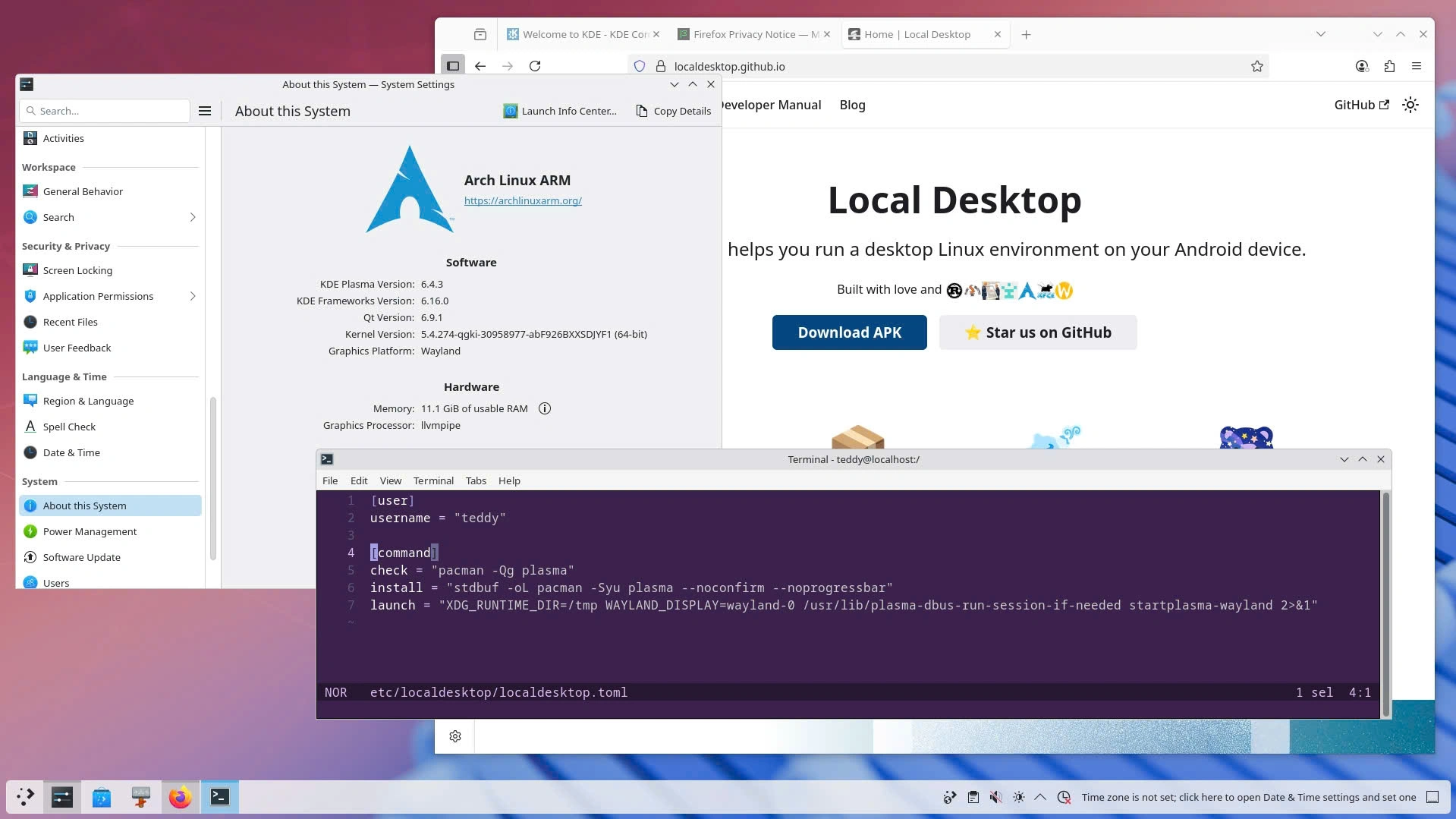
Feedback:
- The time zone is not set, but it's simple to set one in KDE's System Settings.
- "Could not enter folder tags:." error popups.
- The Wayland session is notably faster than the X11 session, or than PRoot Distro + Termux:X11, but a few features (such as Spectacle screenshots) may not work. With KDE dropping X11 support, the Wayland session is the one to use.
Others
Got another desktop environment working? Please share your commands with the "Edit this page" link below, and we will add them here to help others.