External Display
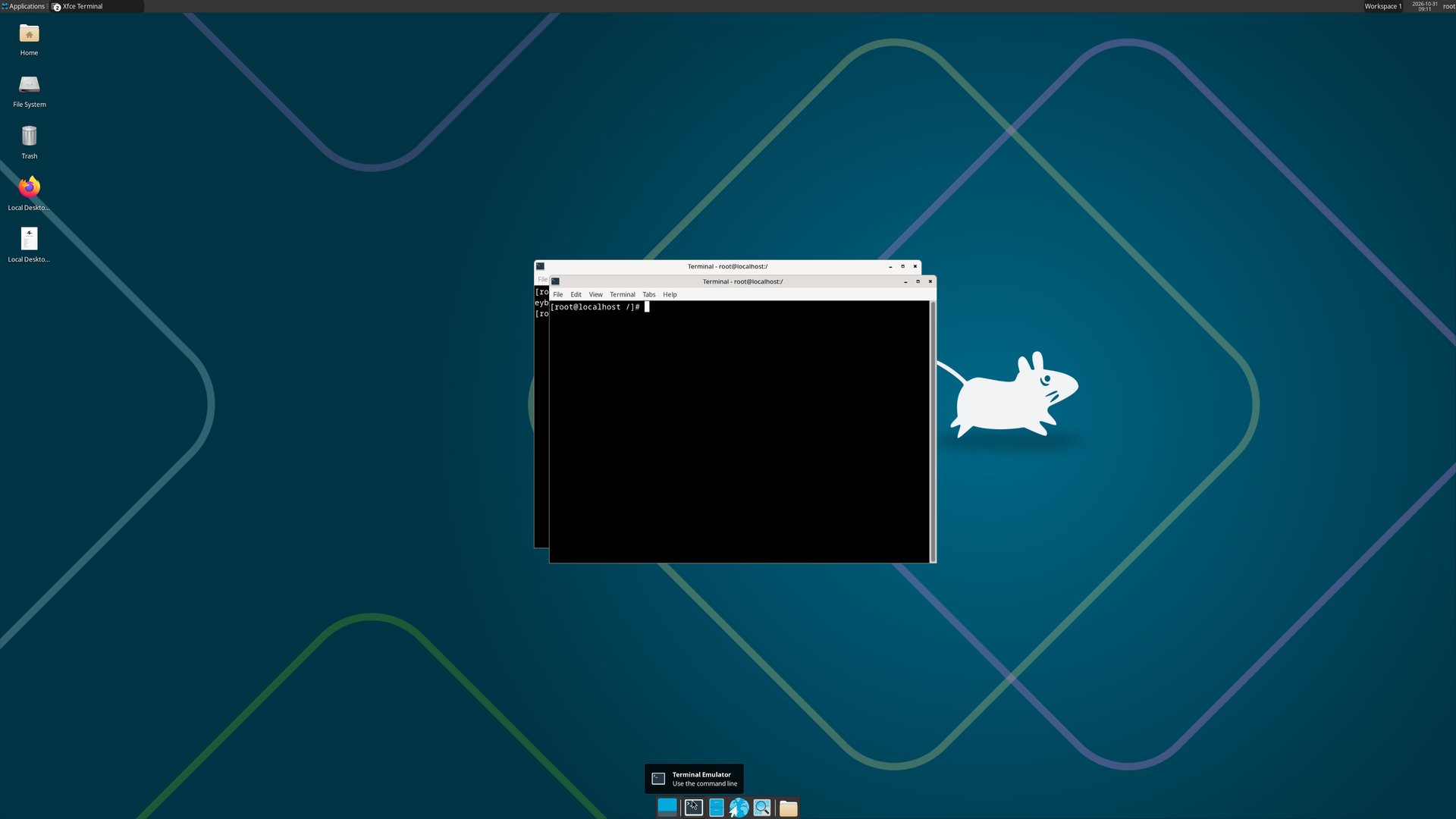
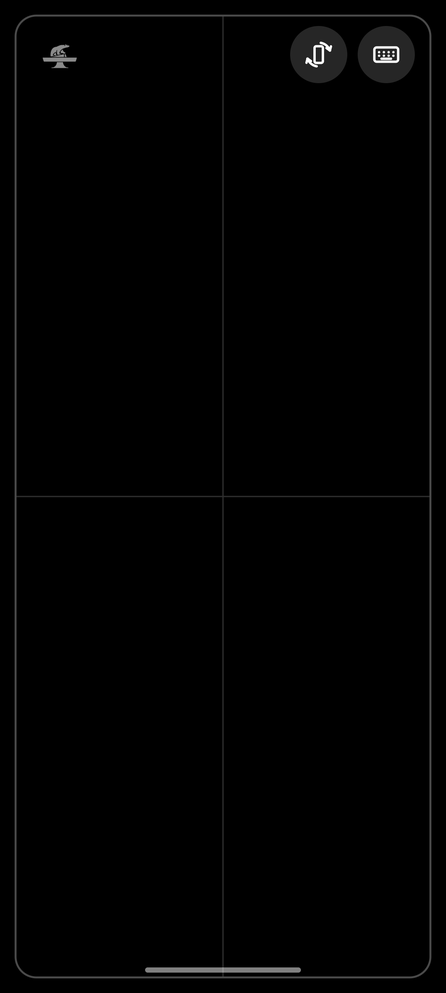
Connect your phone to a monitor or TV (USB-C to HDMI, a USB-C dock, or a wireless display) while Local Desktop is open, and the Linux desktop moves to the big screen. The phone screen turns into a trackpad, like Samsung DeX.
Trackpad gestures
| Gesture | Does |
|---|---|
| Slide one finger | Move the cursor |
| Tap | Left click |
| Tap with two fingers | Right click |
| Tap with three fingers | Middle click |
| Slide two fingers | Scroll |
| Touch and hold, then slide | Drag (hold the left button) |
| Touch and hold, then lift | Right click |
The bear in the top left corner of the trackpad shows which way is up.
Buttons
- Rotate turns the phone's screen a quarter clockwise, trackpad and Android keyboard included, for when you lay the phone sideways while auto-rotate keeps it upright.
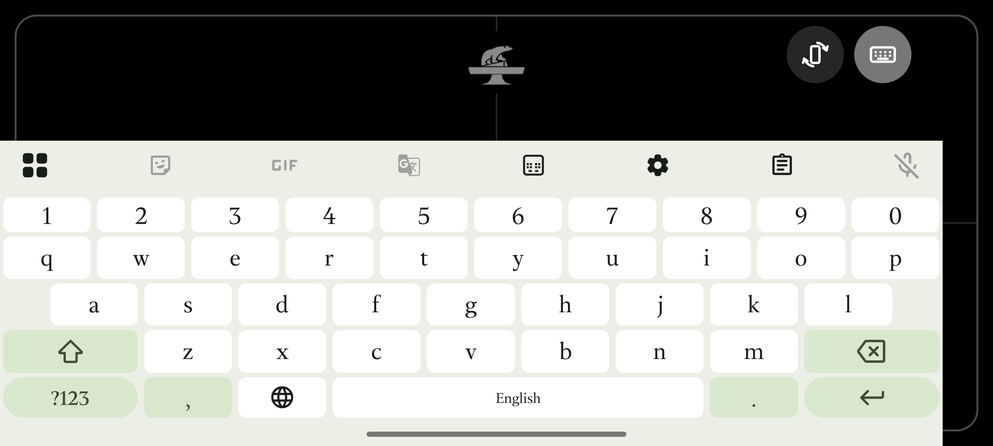
- Keyboard opens the Android keyboard on the phone and types into the desktop. It also opens by itself when a text field on the desktop takes focus, instead of the desktop's own touch keyboard.
A mouse plugged into the phone moves the cursor on the monitor instead of the phone's, and clicks and scrolls there.
In the background
Switch to another app and the desktop stays on the monitor. A mouse or keyboard used on the monitor keeps working there, if Android lets the mouse pointer onto the monitor. Come back to Local Desktop to use the trackpad again.
Good to know
- Unplug the monitor and the desktop comes back to the phone screen.
- The desktop takes the monitor's resolution and scales its UI to the monitor's density.
- If Samsung DeX starts instead, choose Screen mirroring in the notification shade, or turn off Auto start when HDMI is connected in the DeX settings.