Using other Desktop Environments
This is an advanced topic. Proceed with your own risk.
The [command] configs
Local Desktop uses 3 commands to set up your desktop environment:
[command]
check="pacman -Q noto-fonts && pacman -Q xfce4-session && pacman -Q xfce4-panel && pacman -Q xfce4-settings && pacman -Q xfce4-terminal && pacman -Q thunar && pacman -Q xfdesktop && pacman -Q xfconf && pacman -Q labwc && pacman -Q wlr-randr && pacman -Q xorg-xwayland && pacman -Q xdg-desktop-portal && pacman -Q xdg-desktop-portal-gtk && pacman -Q squeekboard"
install="stdbuf -oL pacman -Syu --needed --noconfirm --noprogressbar noto-fonts xfce4 labwc wlr-randr xorg-xwayland xdg-desktop-portal xdg-desktop-portal-gtk squeekboard"
launch="XDG_RUNTIME_DIR=/tmp WAYLAND_DISPLAY=wayland-0 XDG_SESSION_TYPE=wayland XDG_CURRENT_DESKTOP=XFCE /usr/local/bin/startxfce4-localdesktop 2>&1"
You can change these 3 commands to install and launch your custom desktop environment. Please share your successful setups with us and we can put them here to help others.
The try_check, try_install, try_launch configs are very handy to try different config values without breaking anything. Check out the Configurations documentation for more details about try_*.
check
The check command is used to verify if the required packages are installed and Local Desktop is ready to boot in Wayland mode. In case you are wondering, there are 2 modes in Local Desktop:
- Webview mode (the mode with the official website for documentation on top of a progress bar during installation)
- Wayland mode
If the command in check returns success, Local Desktop will boot in Wayland mode. Otherwise, it will enter Webview mode and proceed with the install command.
You can use pacman -Q package to check for a package and pacman -Qg package-group to check for a group. Use the && operator to combine multiple checks.
install
When check fails, this command will be executed next. This is exactly the command that Local Desktop runs during the installation process. Some important notes:
- Always put
stdbuf -oLin front of the command. Why? - Always include the
--noconfirmflag, otherwise, it will get stuck because it is waiting for a confirmation that never comes. - For a clear output, include
--noprogressbar.
Just keep all the syntax and put all the packages/groups between pacman -Syu and the first --. For example: pacman -Syu package-1 package-group-2 package-3 --noconfirm.
launch
When check returns success, this command will be executed next. This is exactly the command that Local Desktop runs to launch the desktop environment.
This is the most important command to set up your preferred desktop environment. It is also the most complicated command, as it requires a good understanding of display server components. Some important notes:
- When things go wrong, you must check the logcat to view the logs.
- If you don't see any error logs, try appending
2>&1to redirect stderr to stdout. - The default session is Xfce on Wayland. The built-in compositor listens on
/tmp/wayland-0; the guest runsstartxfce4 --wayland, which starts labwc as a nested compositor and connects to that socket. Setup also installs/usr/local/bin/startxfce4-localdesktopas a thin wrapper aroundstartxfce4 --wayland.
Put important environment variables at the beginning of the command, for example XDG_RUNTIME_DIR=/tmp WAYLAND_DISPLAY=wayland-0 XDG_SESSION_TYPE=wayland XDG_CURRENT_DESKTOP=XFCE ..., then start a Wayland session such as /usr/local/bin/startxfce4-localdesktop or startplasma-wayland.
For a legacy X11 session via Xwayland, start Xwayland first and point the desktop at DISPLAY=:1, for example: Xwayland -hidpi :1 2>&1 & while [ ! -e /tmp/.X11-unix/X1 ]; do sleep 0.1; done; XDG_SESSION_TYPE=x11 DISPLAY=:1 dbus-launch startxfce4 2>&1.
Config templates
KDE Plasma
[command]
try_check = "pacman -Qg plasma"
try_install = "stdbuf -oL pacman -Syu plasma --noconfirm --noprogressbar"
# X11 session via Xwayland
try_launch = "XDG_RUNTIME_DIR=/tmp Xwayland -hidpi :1 2>&1 & while [ ! -e /tmp/.X11-unix/X1 ]; do sleep 0.1; done; XDG_SESSION_TYPE=x11 DISPLAY=:1 dbus-launch startplasma-x11 2>&1"
# Wayland session
try_launch = "XDG_RUNTIME_DIR=/tmp WAYLAND_DISPLAY=wayland-0 /usr/lib/plasma-dbus-run-session-if-needed startplasma-wayland 2>&1"
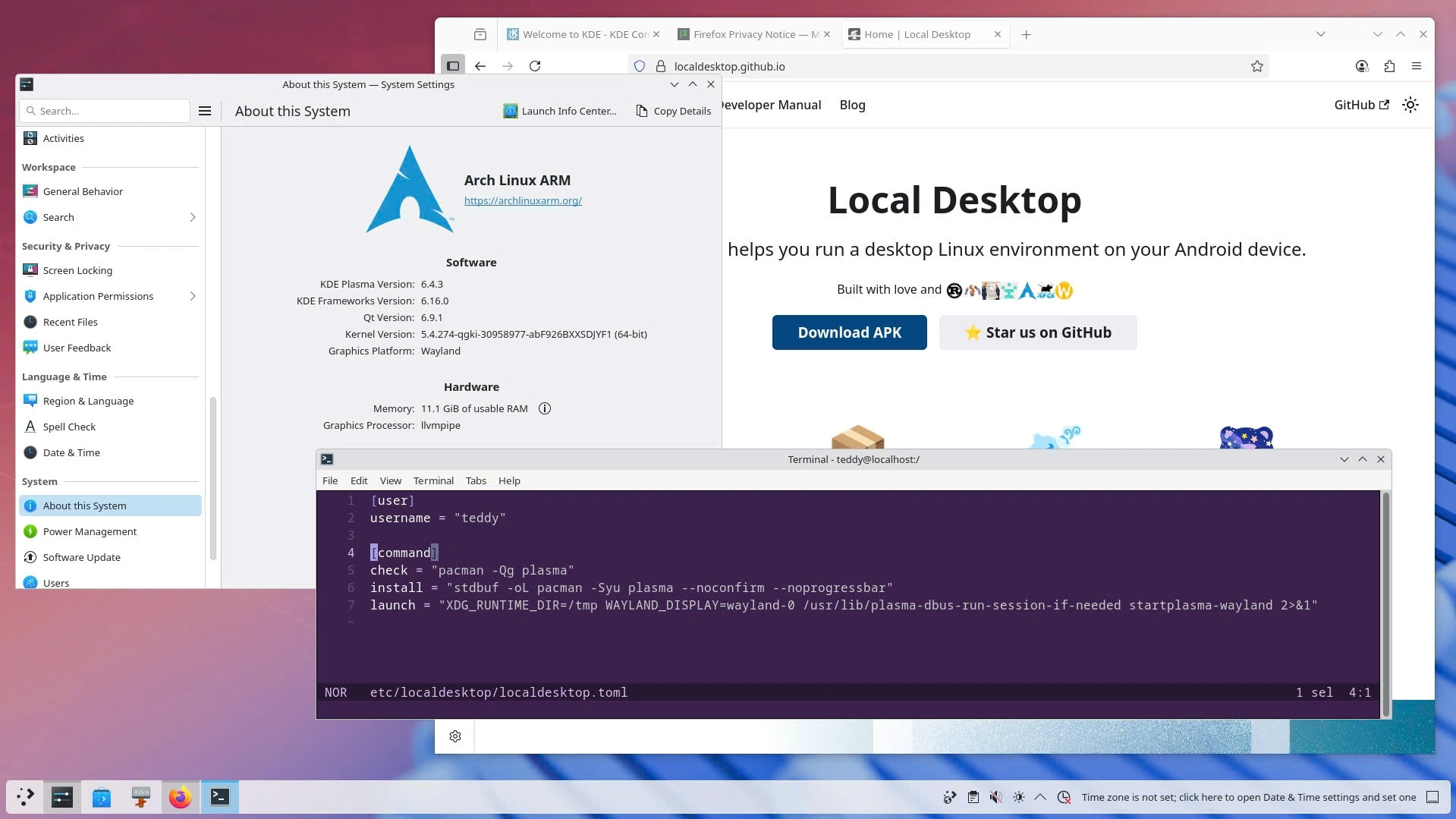
Feedback:
- The time zone is not set; however, it is simple to set one with KDE's UI.
- "Could not enter folder tags:." error popups.
- The Wayland session offers notably better performance than the X11 session or PRoot Distro + Termux:X11, but some features (e.g., Spectacle screenshots) may not work. With KDE 7 dropping X11 support, improving Wayland compatibility and being less dependent on Xwayland will be a bigger priority.
Others
Feel free to contribute your configs by using the "Edit this page" link below